
STEP 01
Open Shortcuts
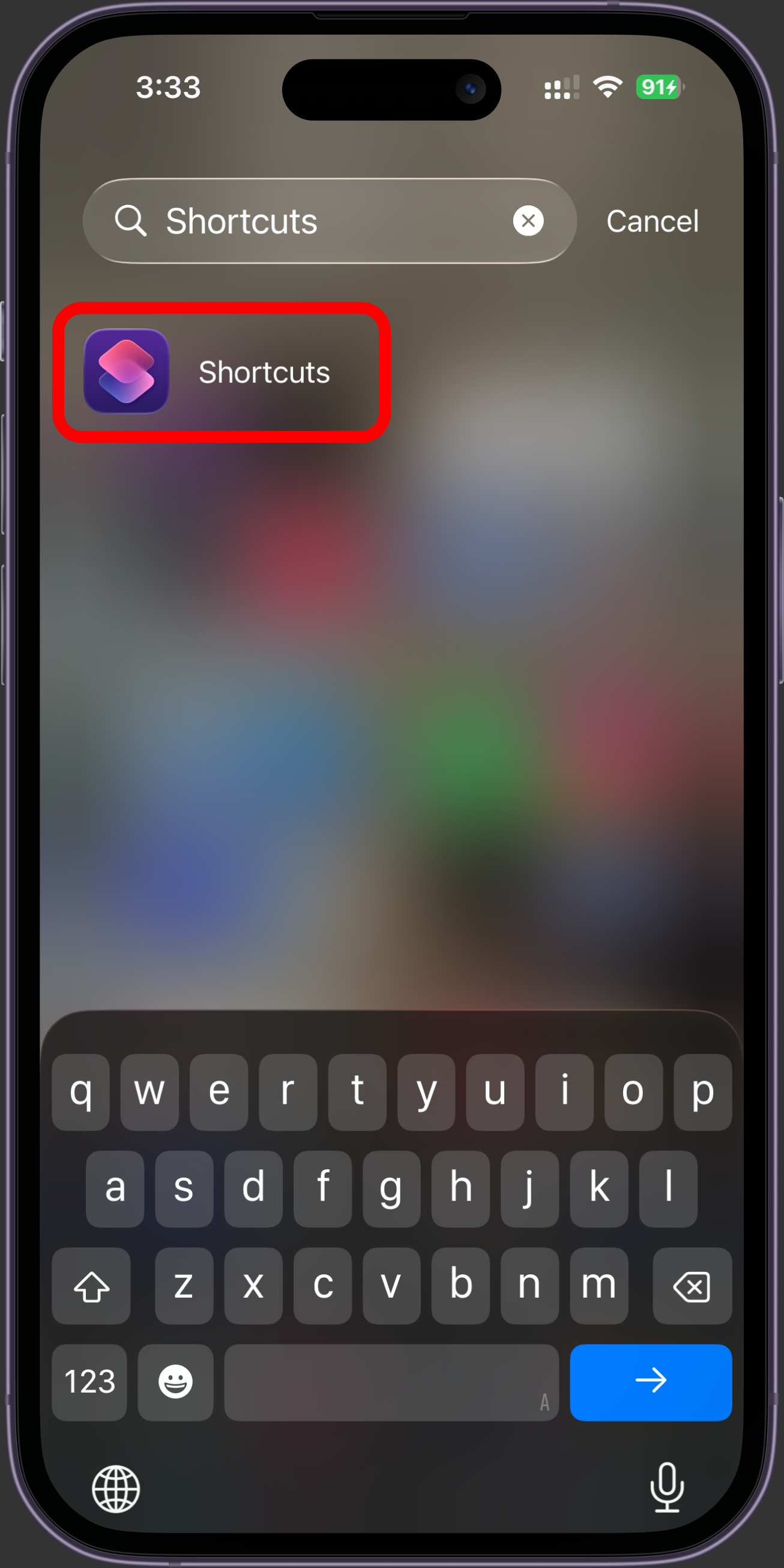
Swipe left to the last page on your iPhone. Pull down and type Shortcuts. Tap to open it.
Use Apple Shortcuts to start Voice Clock at a time you pick.
Set once, runs forever
No need to open the app daily
Starts automatically
Wake up to time announcements every morning
Unlimited announcements
Scheduling them one by one stops at the iOS limit of 64. Auto-start has no cap.
Premium feature
Part 1
Shortcuts saves it for you. No need to name it.
STEP 01
Swipe left to the last page on your iPhone. Pull down and type Shortcuts. Tap to open it.
STEP 02
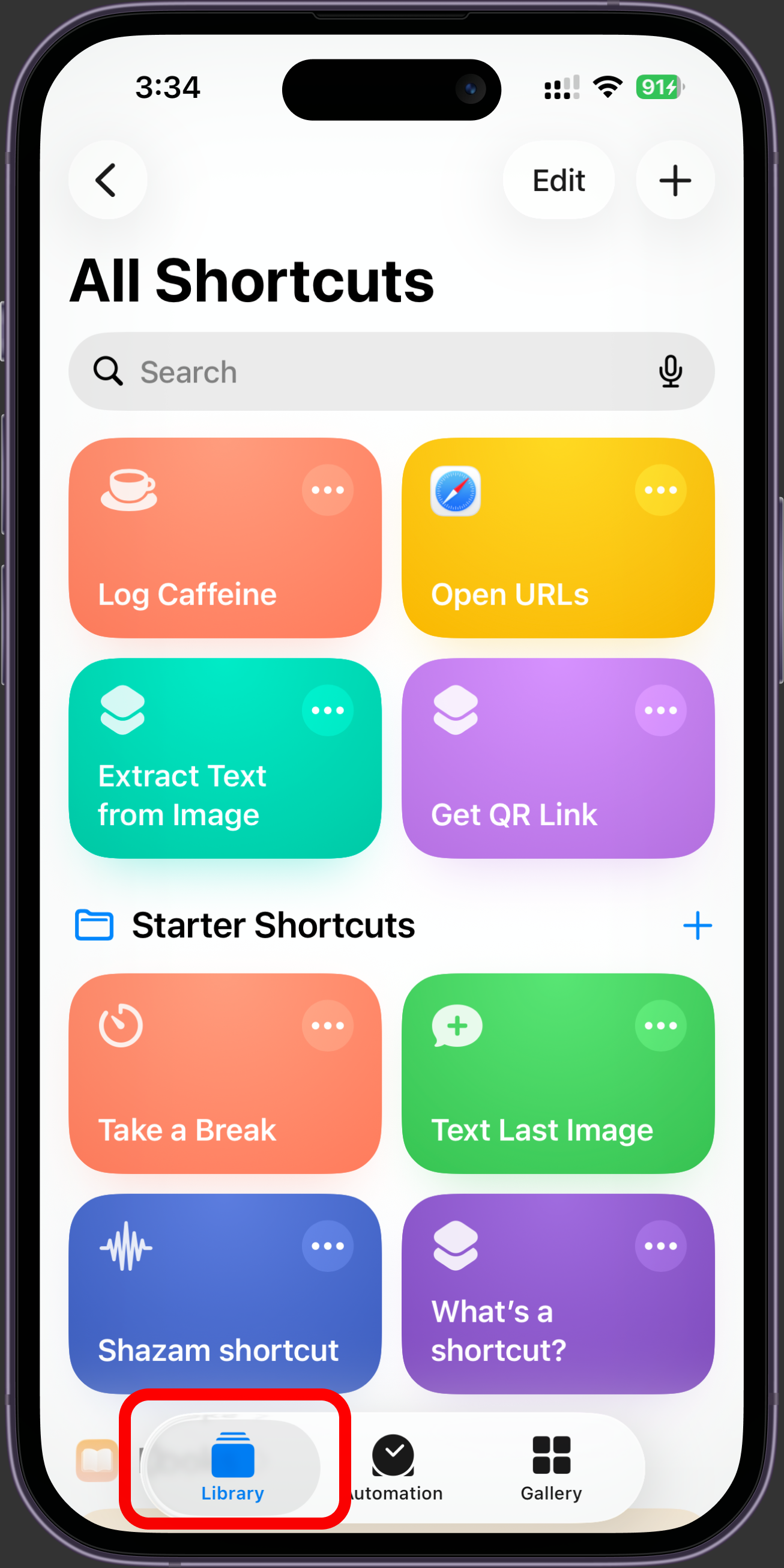
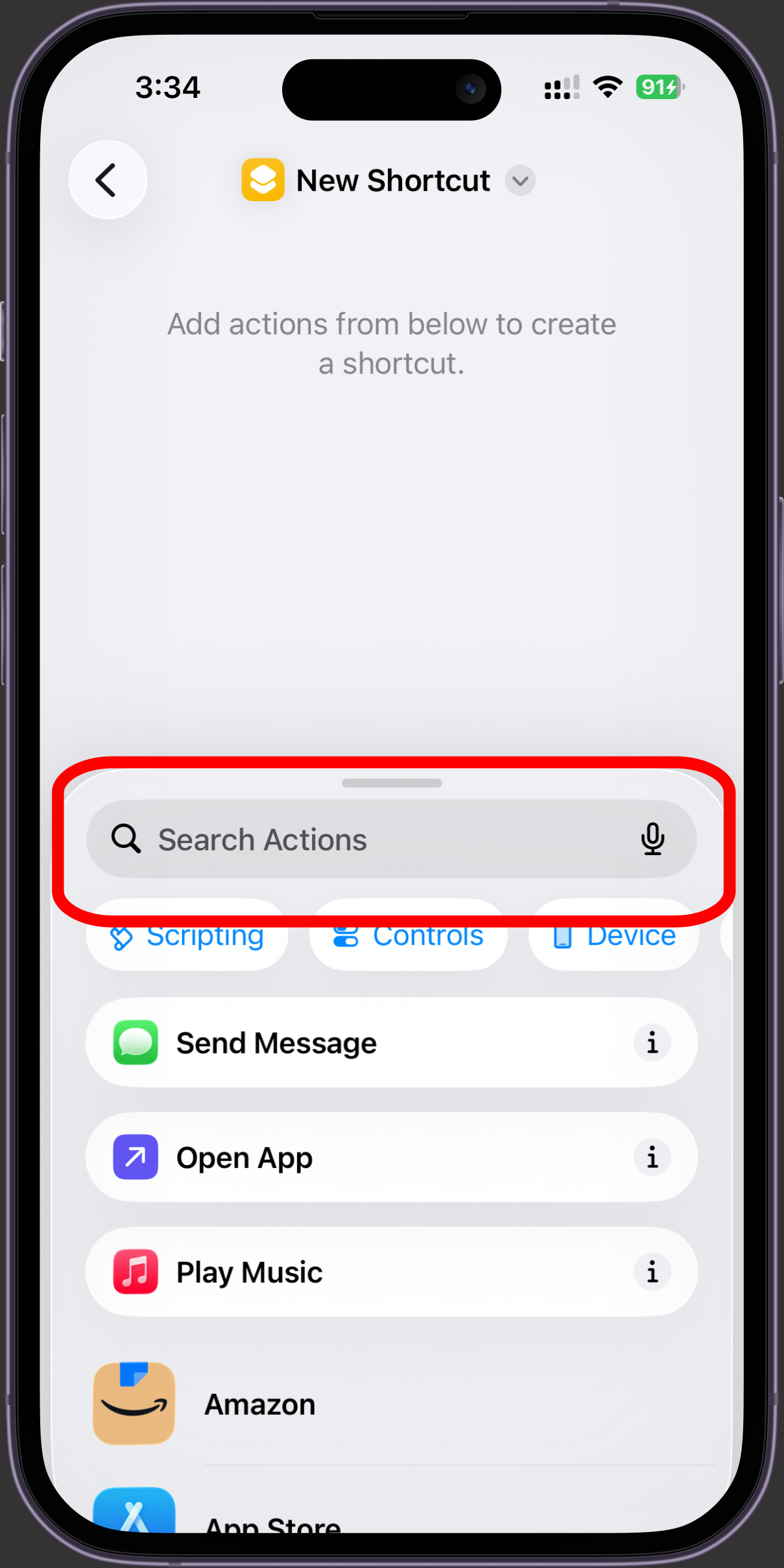
Tap Library at the bottom. Tap the + button at the top right. Then tap Search Actions.
STEP 03
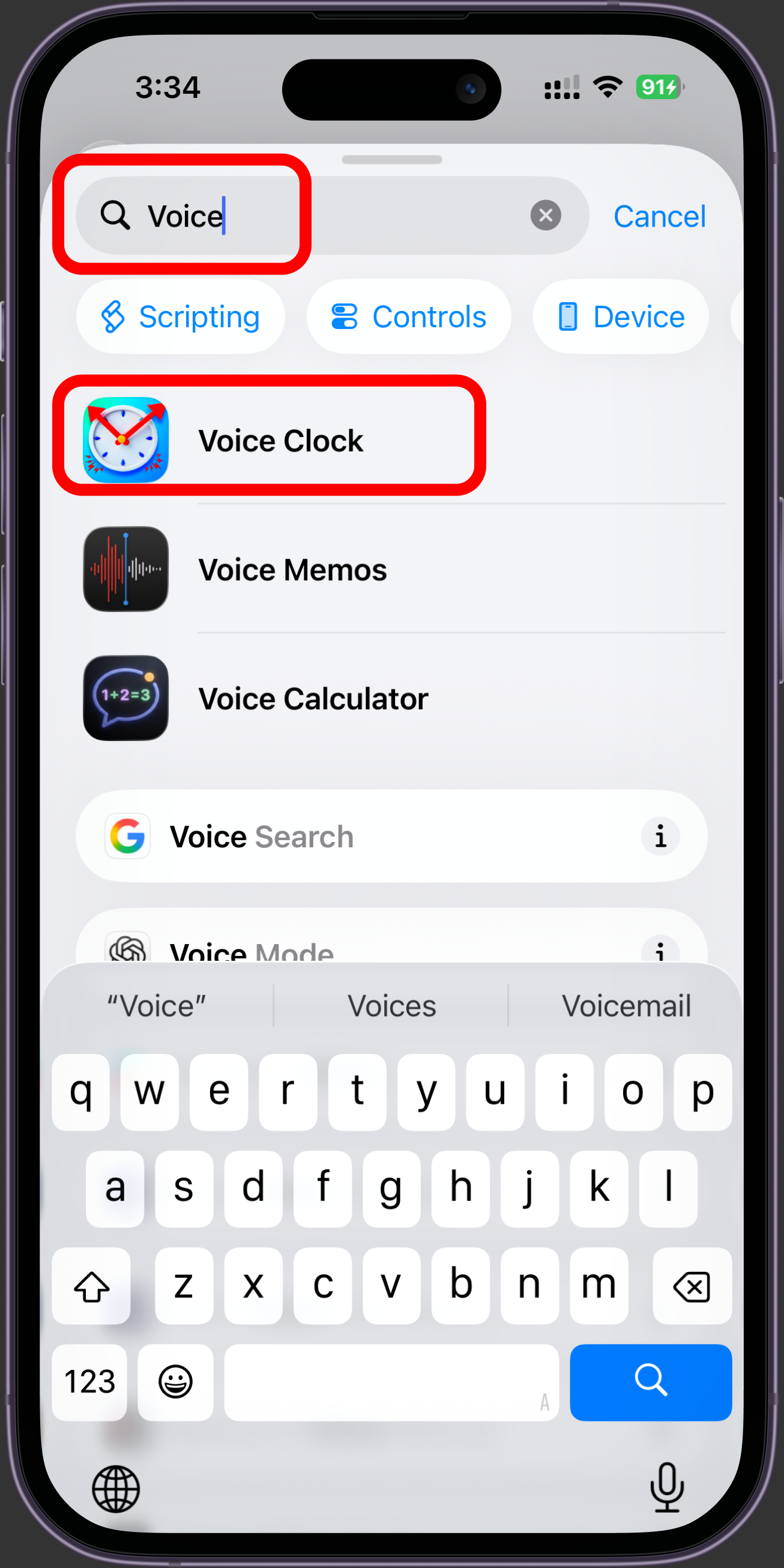
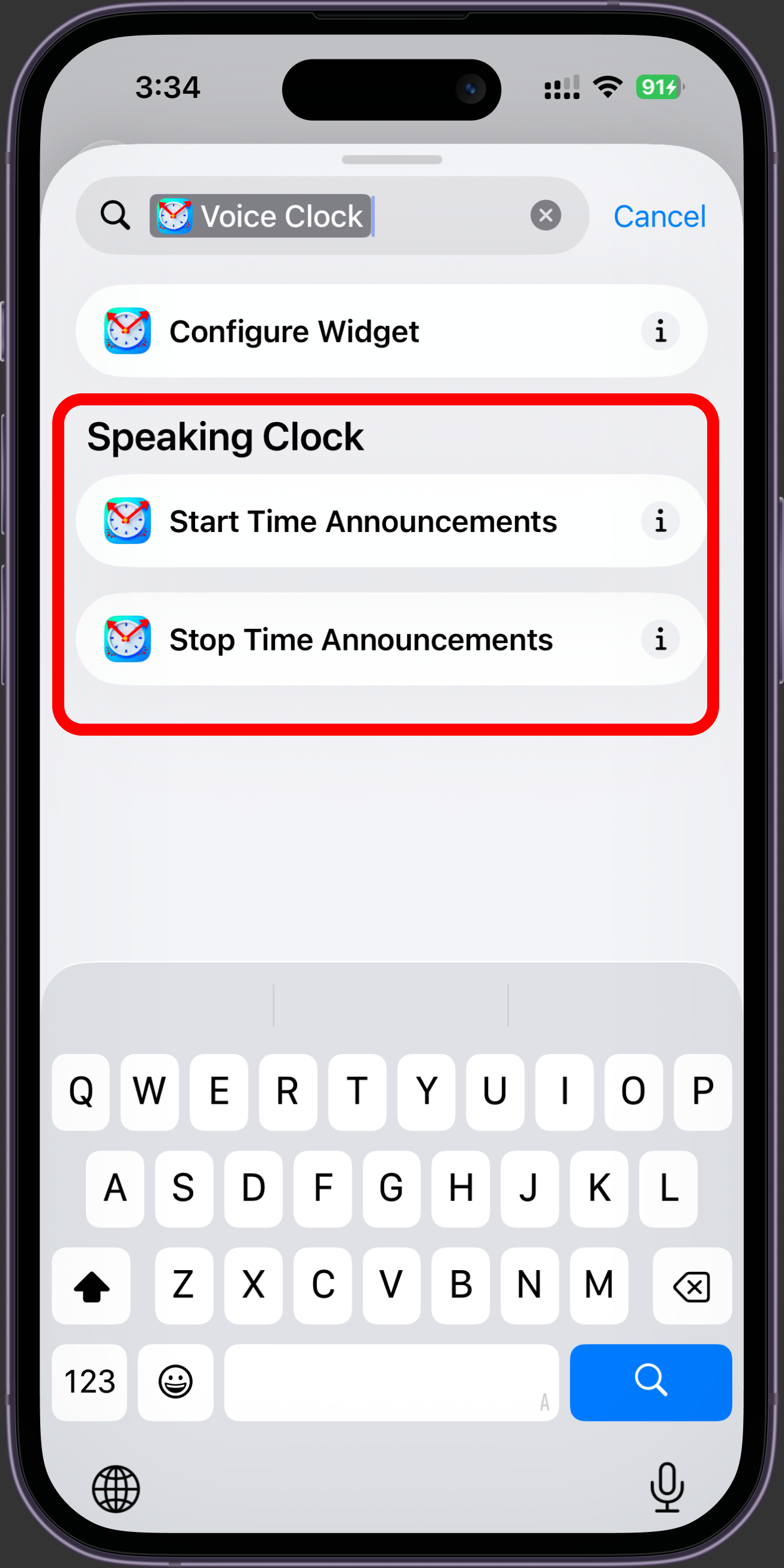
Type Voice Clock. Tap the Voice Clock app when it shows up. Then tap Start Time Announcements.
Is your iPhone set to another language? Search for the name on your Home Screen instead: Horloge Parlante in French, Zeitansage Uhr in German, 音声時計 in Japanese. The actions are translated too, so Start Time Announcements reads as Zeitansagen starten or Iniciar anuncios de hora. Same action either way.
STEP 04
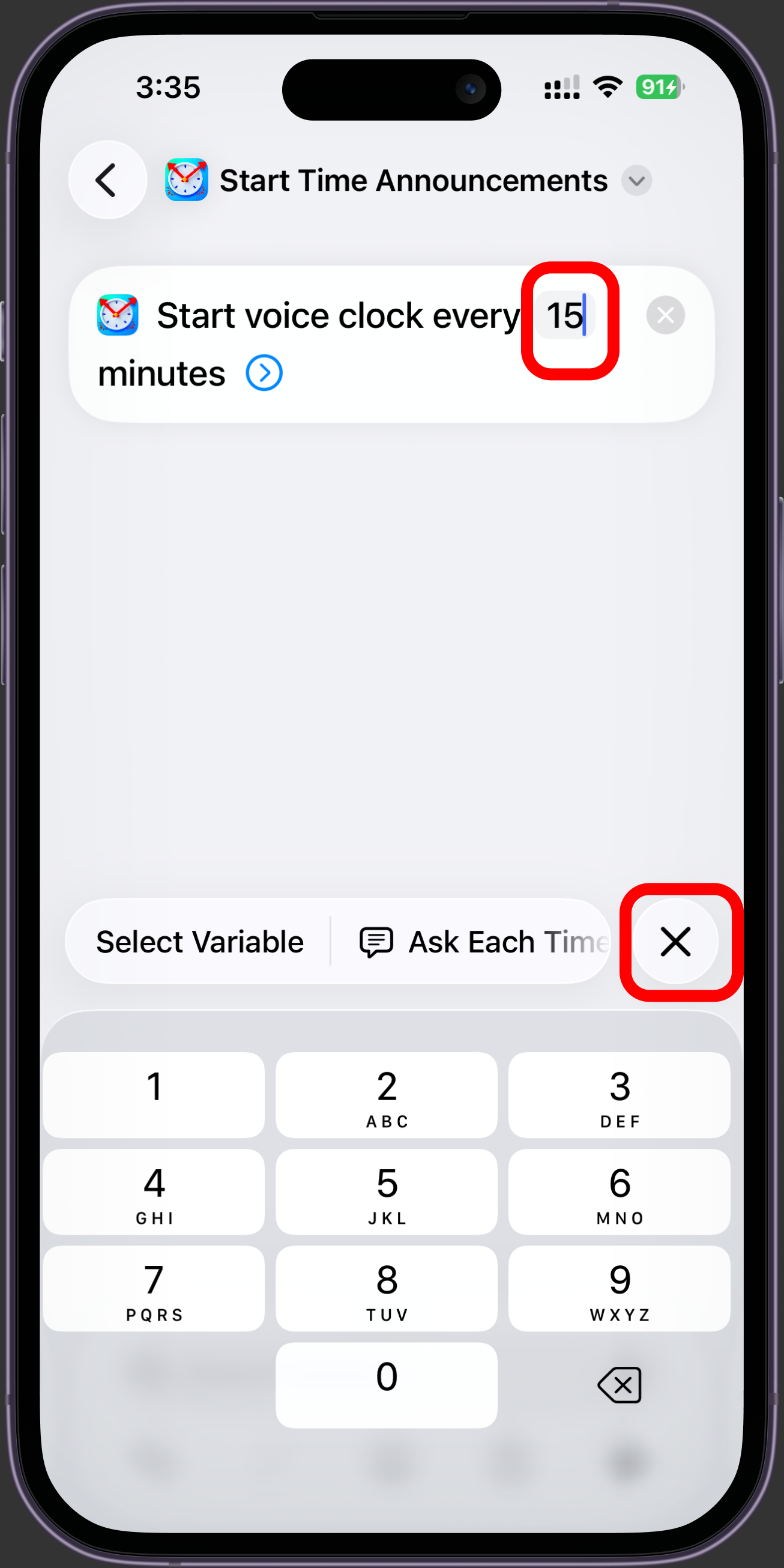
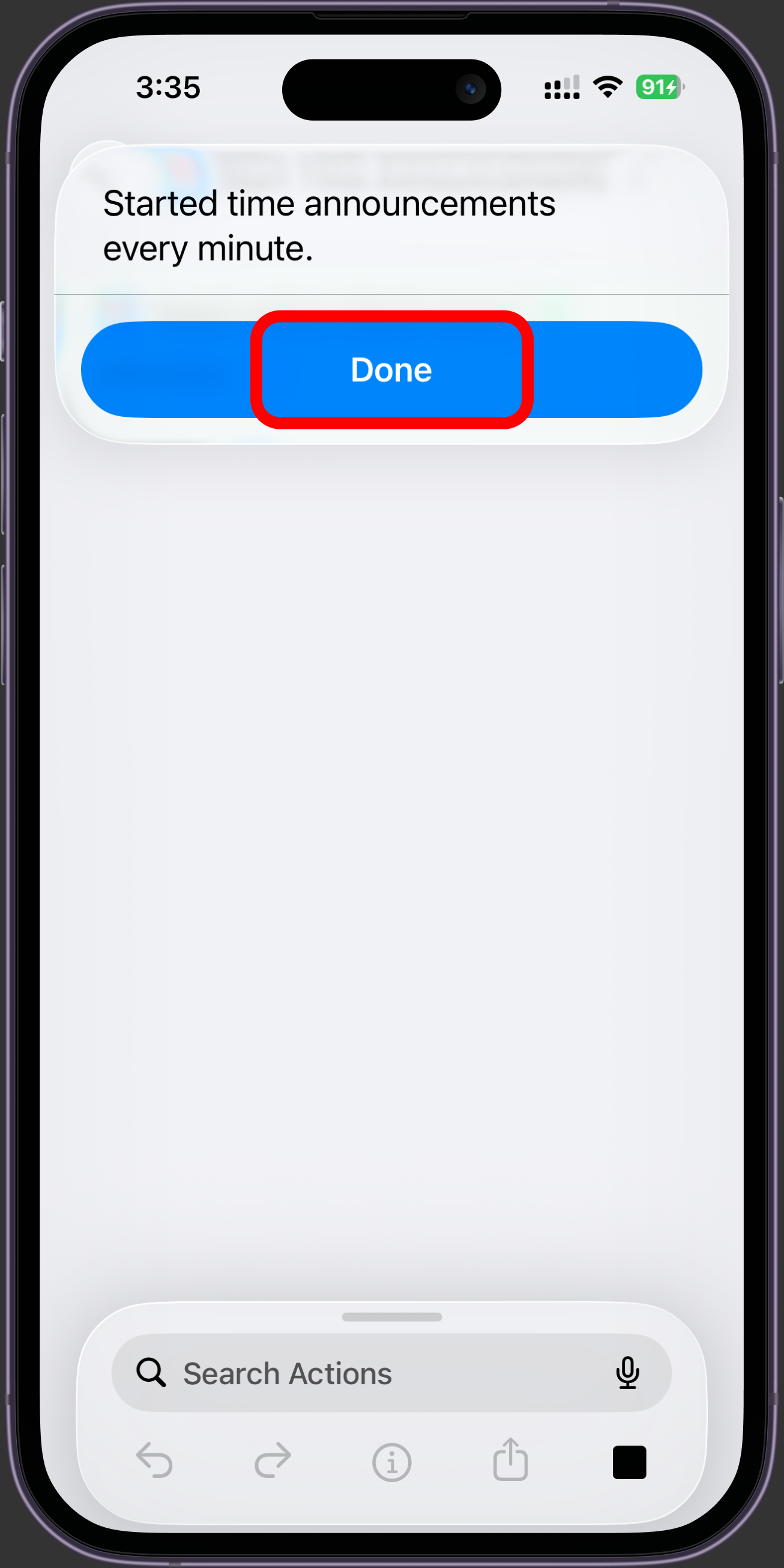
Tap the 15 in "Start voice clock every 15 minutes." Type any number from 1 to 60. Tap minutes to switch it to seconds if you want the time called out more often. Tap the × to close the number pad, then tap Done.
Minutes suit most days. Seconds are there for workouts, cooking, and timed practice, where every 30 seconds is more useful than every 30 minutes.
Stopping
You don't have to set anything up to stop Voice Clock. Build a Stop shortcut only if you want it to stop without you.
Stop it yourself, whenever
Open Voice Clock and tap Stop, or ask Siri to stop the voice clock. Nothing to set up, works from day one.
Let it stop on its own
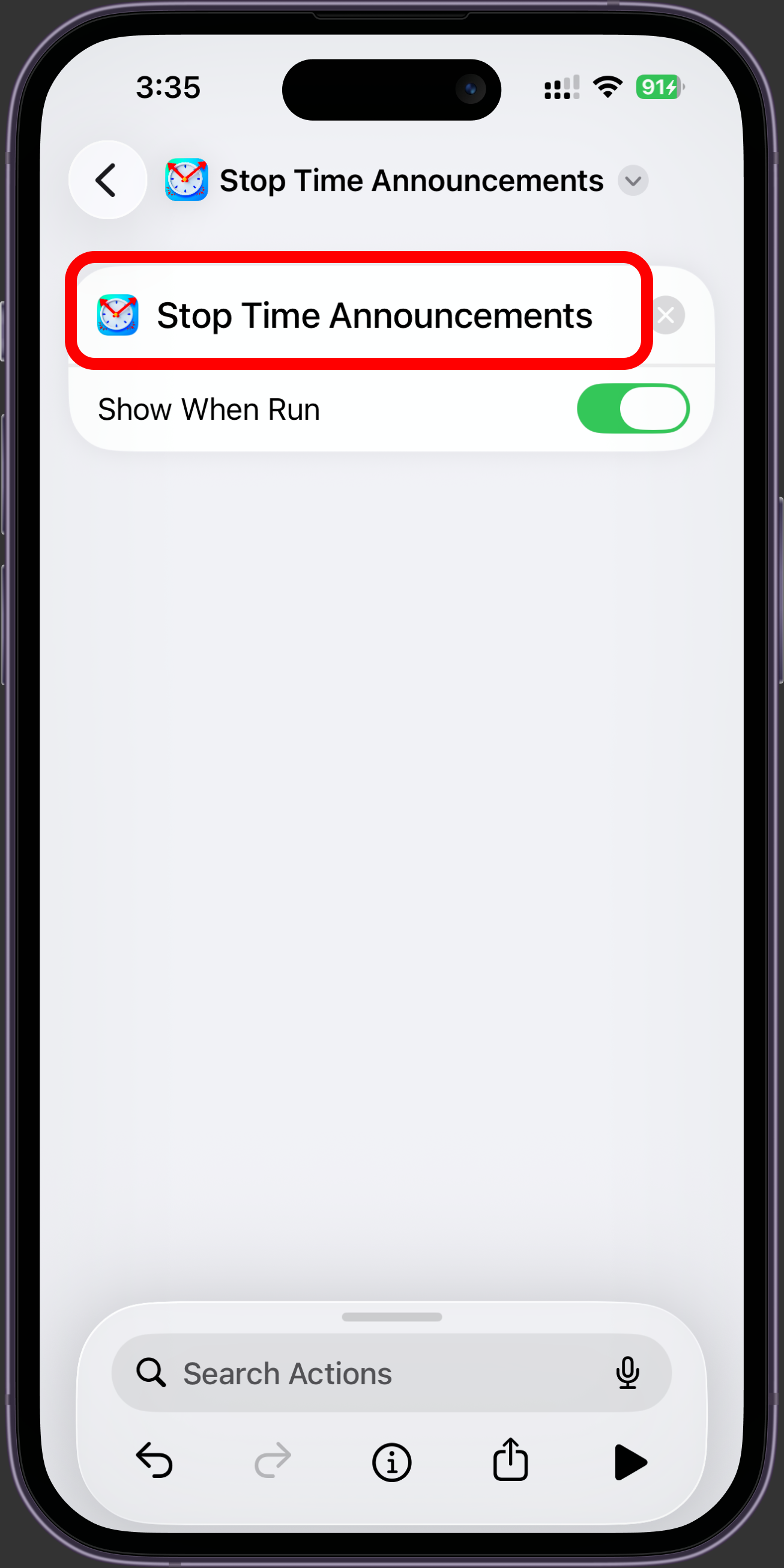
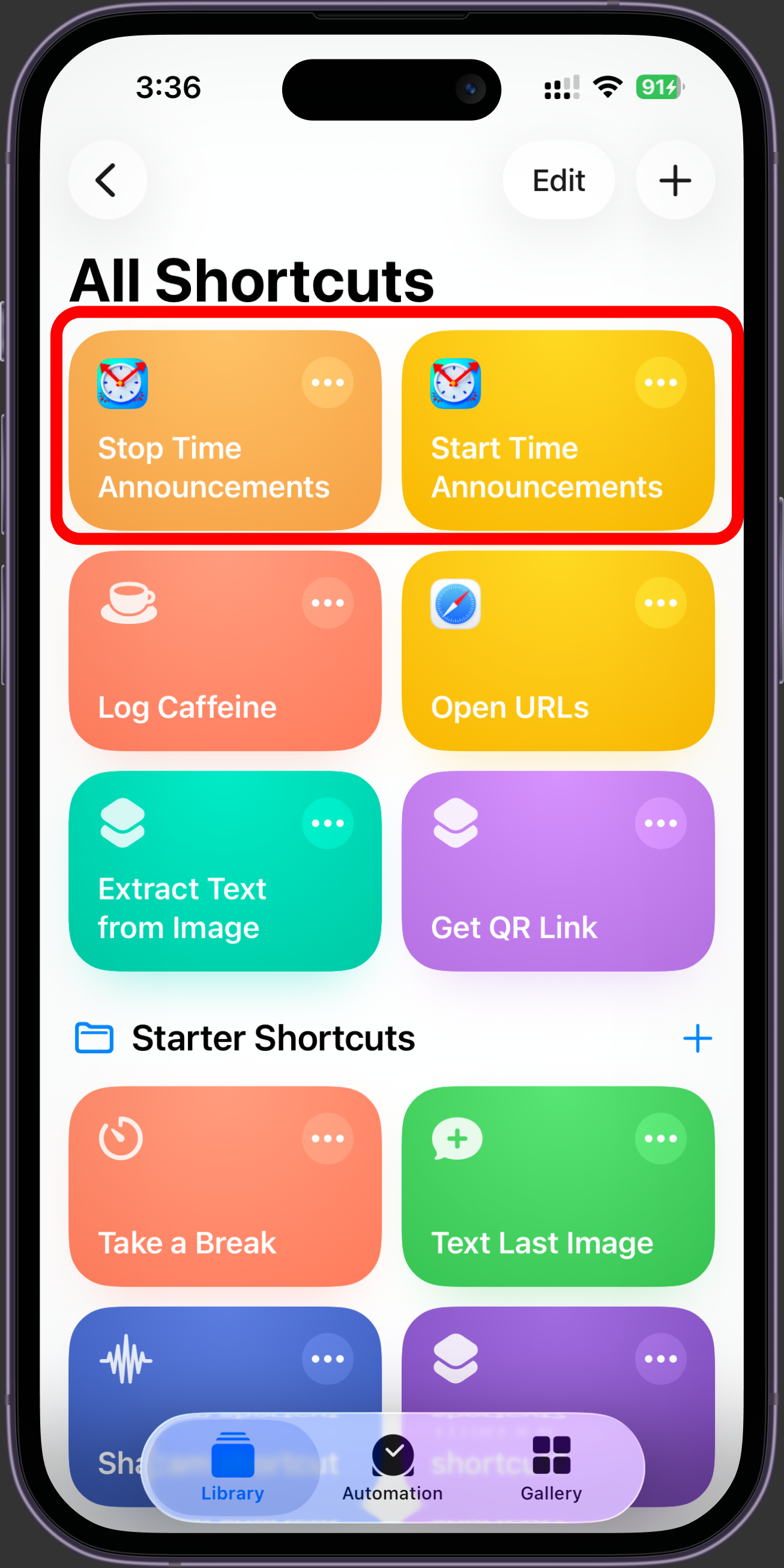
Make a second shortcut exactly like Part 1, but pick Stop Time Announcements instead of Start. Then give it its own automation in Part 2 below, so the clock goes quiet at 6 PM, when you leave work, or whenever suits you.
Keep Start and Stop as separate shortcuts. If you put both in the same one, Voice Clock would stop right after it starts.
Part 2
Now tell iPhone when to run your shortcut.
Time of Day
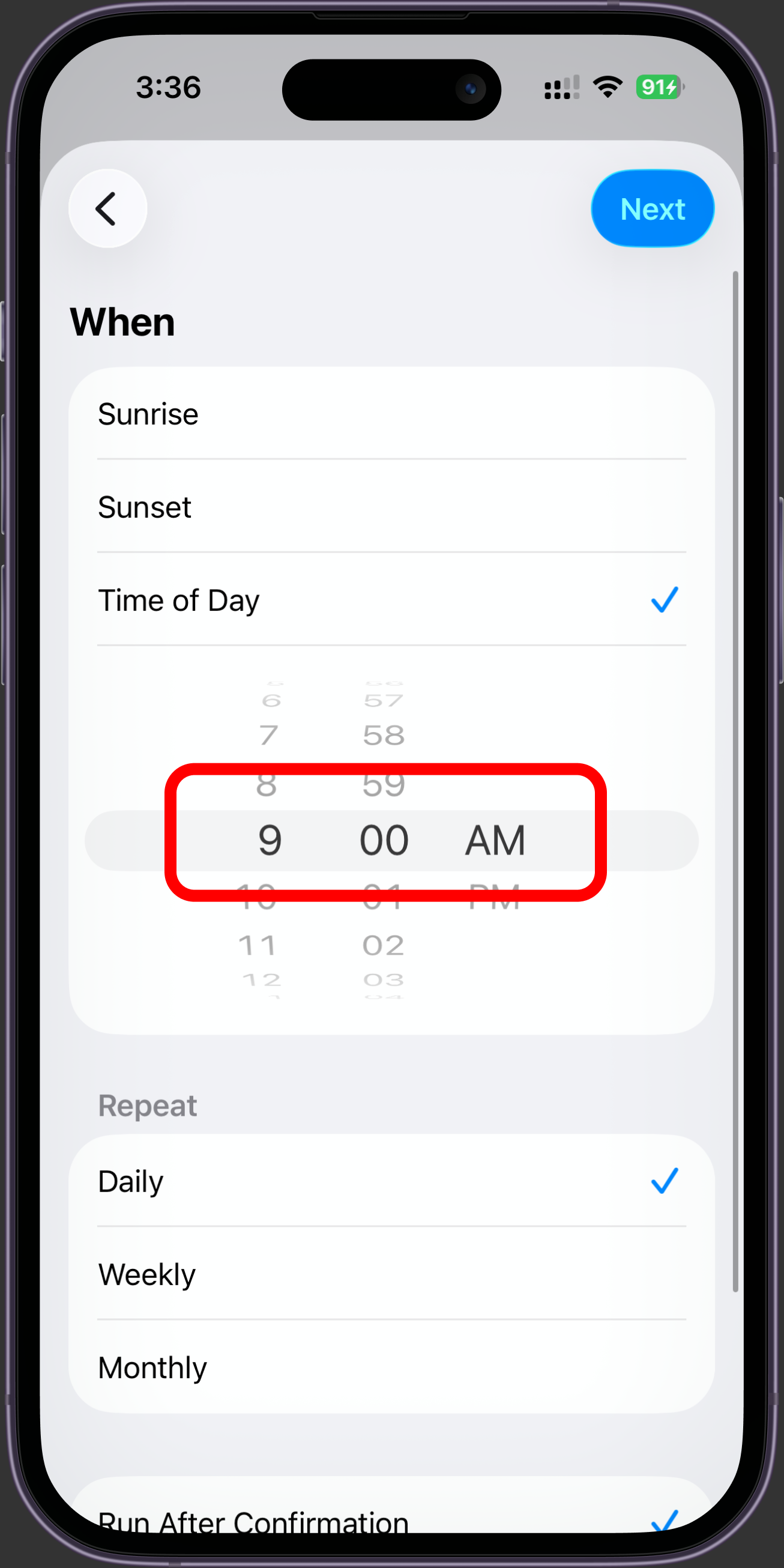
Start at 9 AM every weekday.
Arrive or Leave
Start when you get to work or the gym.
Bluetooth
Start when you connect headphones.
Other events
Battery Level, Airplane Mode, alarms, and more.
STEP 05
Open Shortcuts again. Tap Automation at the bottom. Tap the + button at the top right.
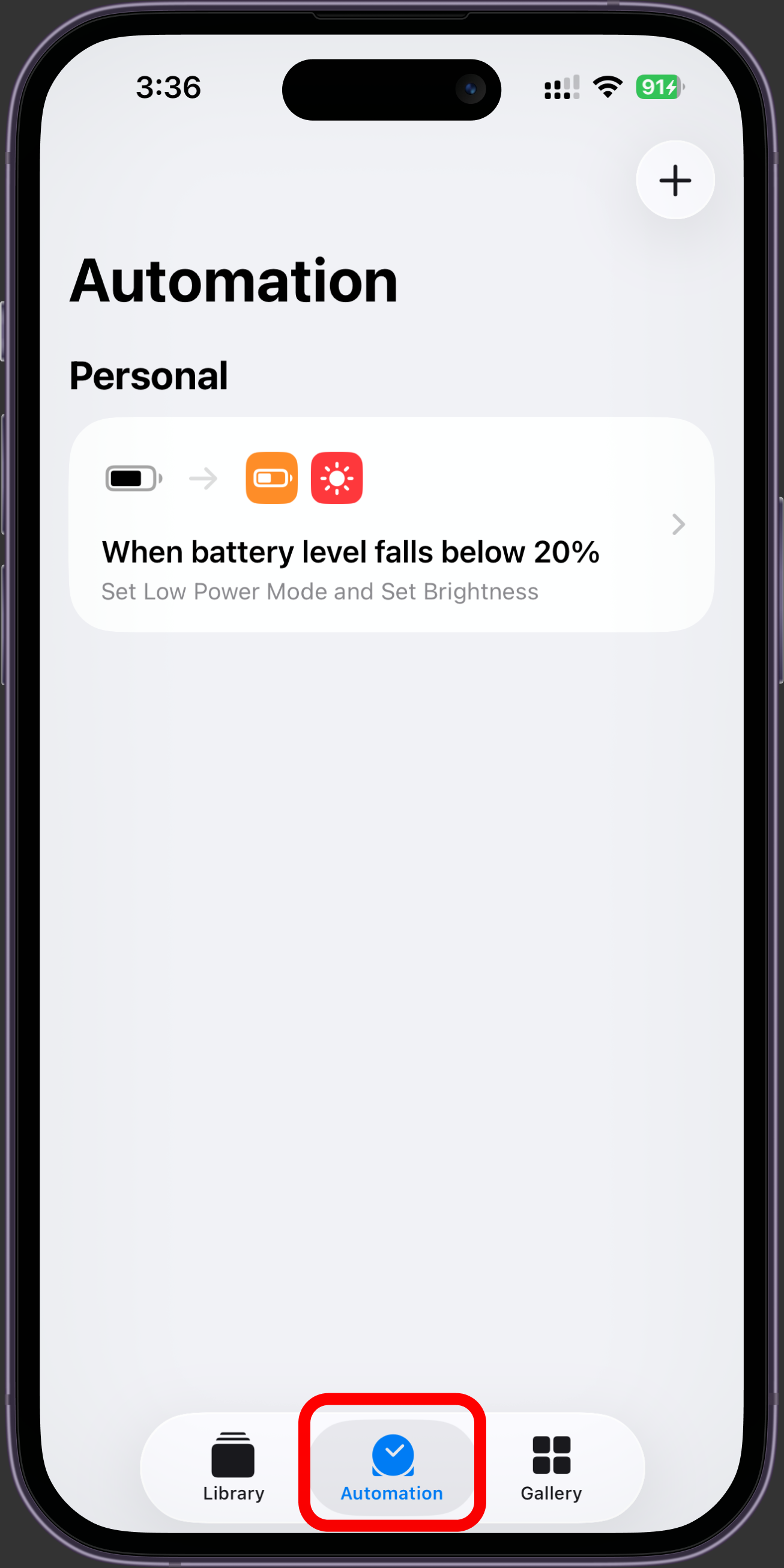
STEP 06
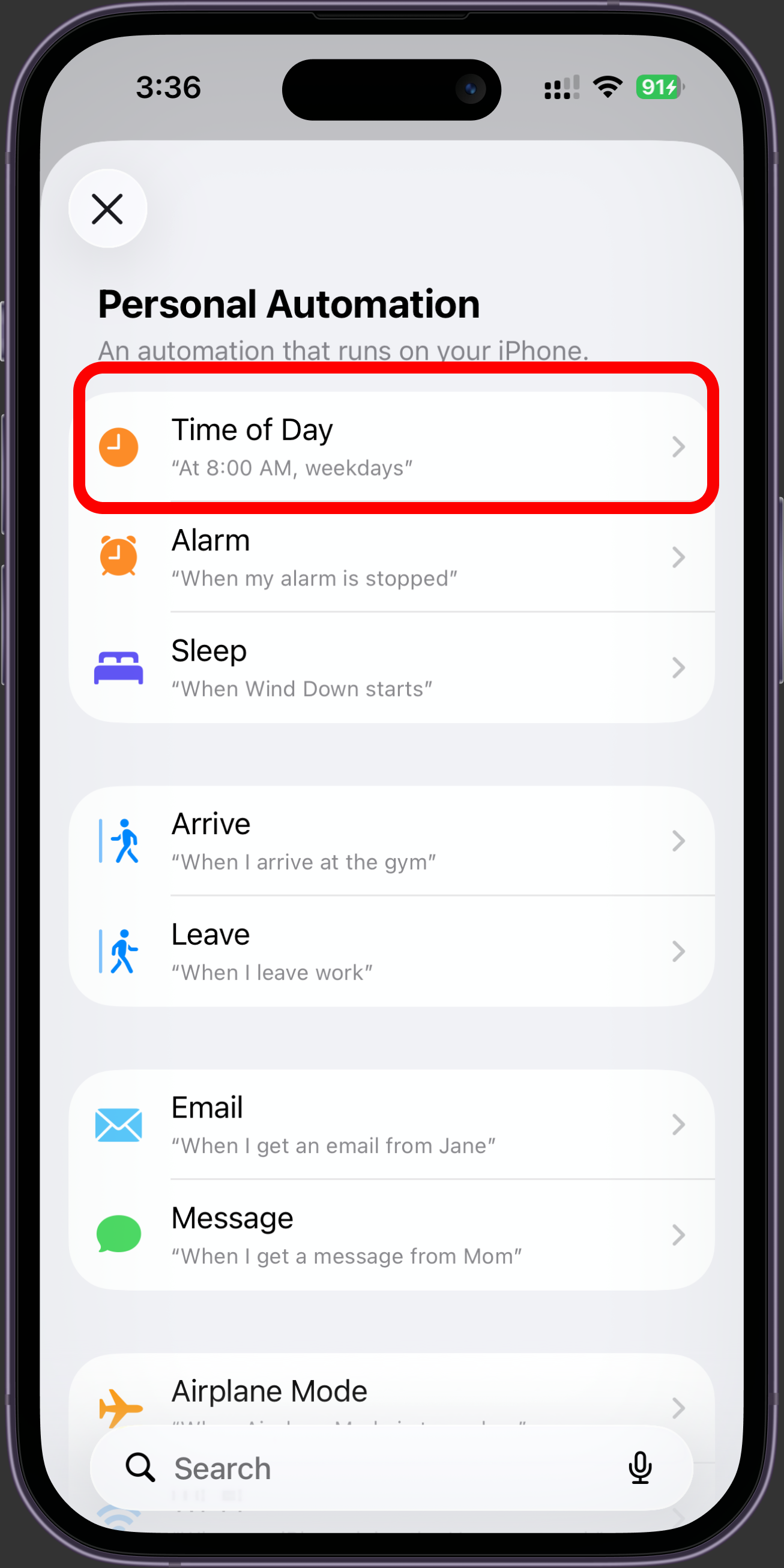
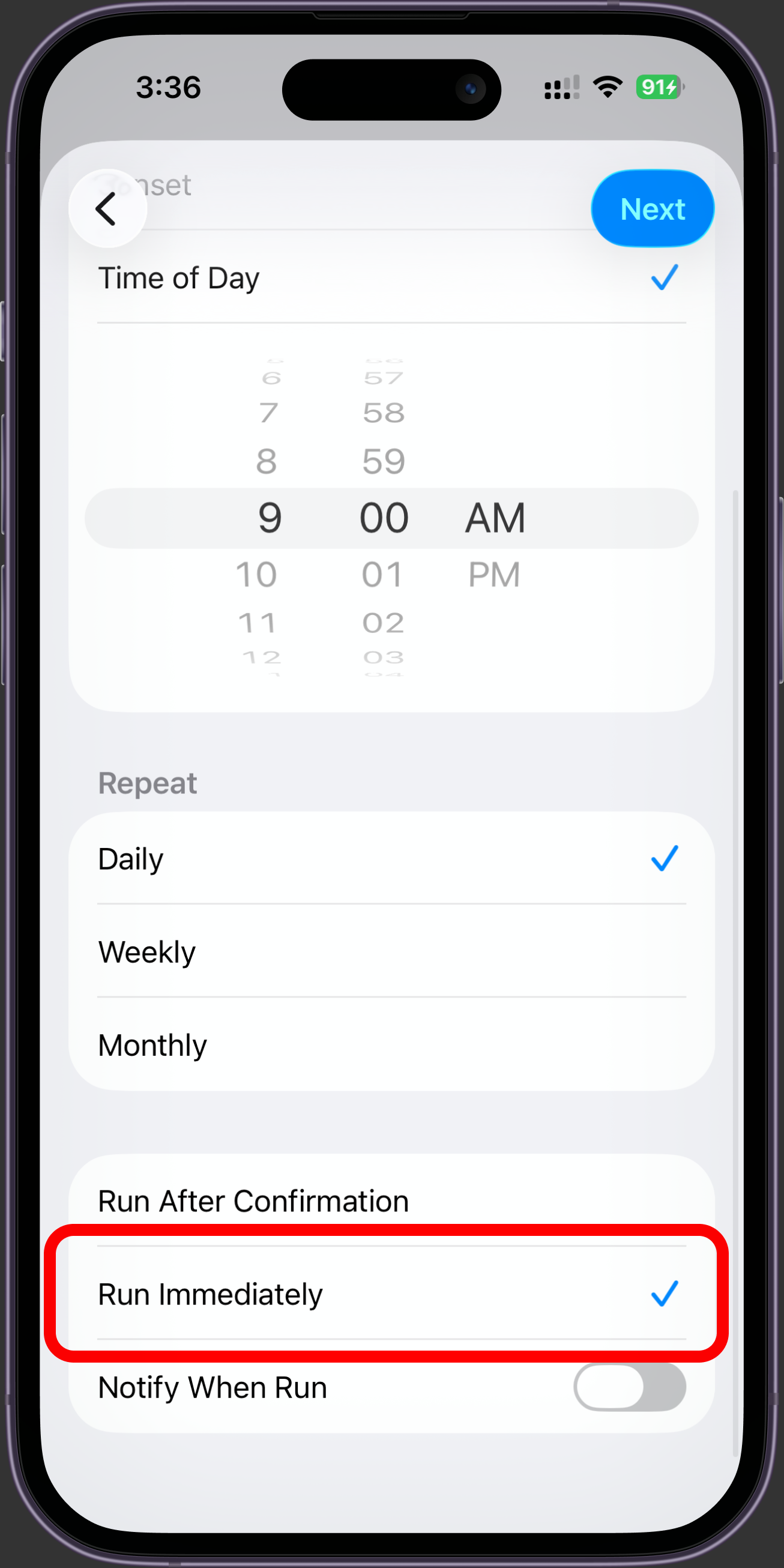
Tap Time of Day to start at the same time each day. Or pick something that happens in your routine, like connecting headphones or arriving at work.
STEP 07
Don't skip thisTap Run Immediately so Voice Clock starts on its own. If you leave it on Run After Confirmation, your iPhone waits for you to approve it every single time, which defeats the point.
Test it once before you rely on it. The first time an automation fires, iPhone can ask you to allow it. Tap Allow and it stops asking. You will still see a small notification every time it runs after that. That one never goes away, because Apple requires automations that run by themselves to tell you they ran. You do not have to tap it. Voice Clock starts either way.
STEP 08
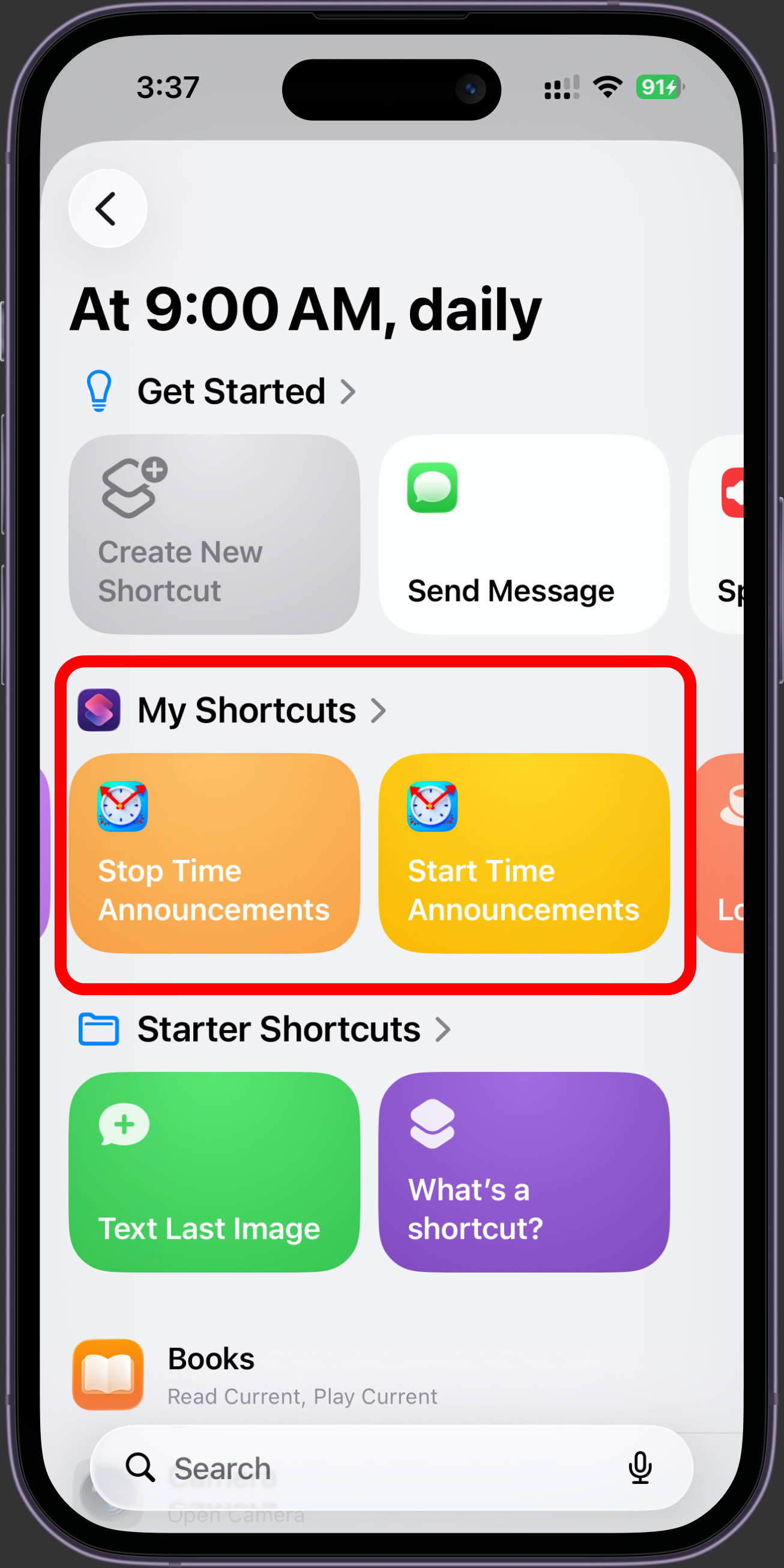
This screen only asks which shortcut to run. Tap Start Time Announcements under My Shortcuts. Voice Clock now starts by itself at the time you picked.
Test it first
Lock your phone and wait. If it works, you can change the time to your real schedule.
Want to stop it now?
Run your Stop shortcut, ask Siri to stop Voice Clock, or open Voice Clock and tap Stop.
Download Voice Clock and set it up once.
Download Voice ClockStuck on a step?
Email me. Tell me which step you're on and what your iPhone is showing, and I'll walk you through it.
[email protected]